What Is Playtronica Orbita? A Complete Beginner’s Guide

The Playtronica Orbita is a new kind of musical instrument that looks a bit like a modern record player.
But instead of playing records, you make music using colorful magnets. It’s a “tactile sequencer” that lets you see, touch, and build musical loops.
This guide will show you exactly what the Playtronica Orbita is and how it works. You’ll learn how to set it up in just a few minutes. We will also cover how you can use it to make your very first beats.
So, What Exactly Is the Playtronica Orbita?
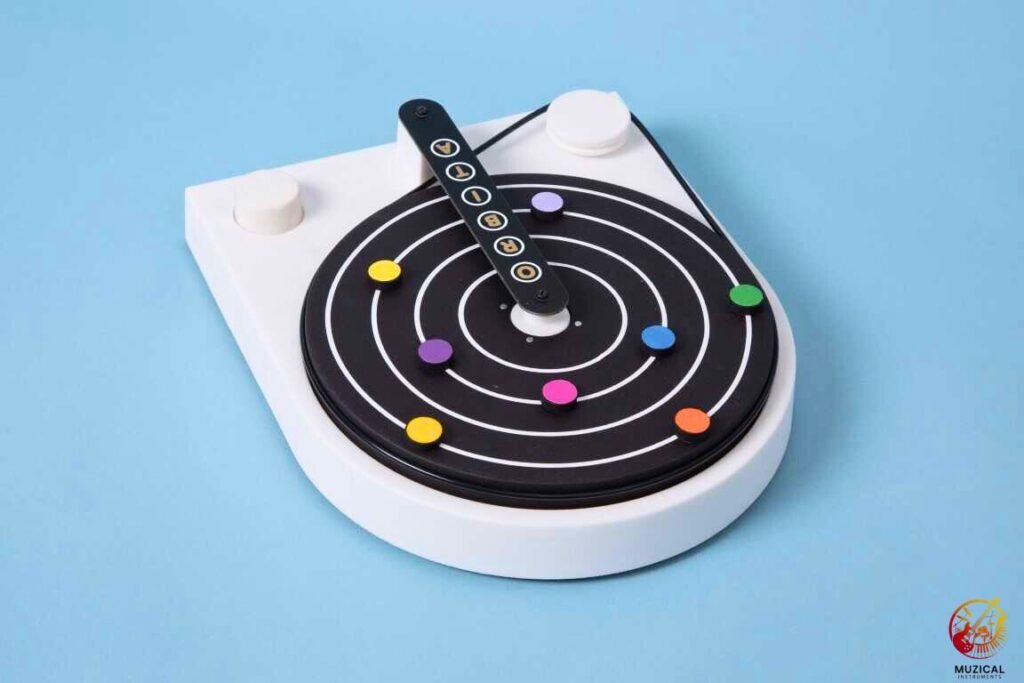
The Orbita is a music sequencer. A sequencer’s job is to play musical notes in an order, over and over again. This is also called a “loop.”
Most sequencers live inside a computer, on a screen. The Playtronica Orbita is different. It’s a physical, hands-on tool. You don’t need to look at a screen to use it.
It was made by Playtronica, a design studio that loves finding new ways to make music. They specialize in interactive music creation tools that are fun for everyone, not just expert musicians.
The Big Idea: Music from Colors
Here’s the main idea in a few simple lines:
- A Spinning Disc: The Orbita has a round platter that spins, just like a turntable.
- Colorful Magnets: You get a set of small, colorful magnets.
- Place Your Notes: You place these magnets on the spinning disc.
- A Sensor Reads: As the disc spins, the magnets pass by a sensor that reads their color.
- Color = Sound: The Orbita turns each color into a musical note.
By placing magnets in different patterns, you are literally building a melody or a drum beat that you can see.
Wait, So It Doesn’t Make Sound On Its Own?
This is the most important thing for a beginner to know: No, the Orbita does not make any sound by itself.
It has no speakers. This is a very common beginner mistake! People plug it in and expect to hear music, but it’s silent.
The Orbita is a MIDI controller.
Think of it this way: A MIDI controller is like a computer keyboard. A keyboard doesn’t make words on its own. It sends instructions to a computer, and the computer shows the letters on the screen.
The Orbita is a keyboard for music. It sends musical instructions to a computer or another device. That other device then plays the actual sound. The set of instructions it sends is called MIDI (Musical Instrument Digital Interface).
How Does the Playtronica Orbita Work?
Let’s look at the “magic” happening inside this unique Playtronica music device.
From Magnets to Melodies
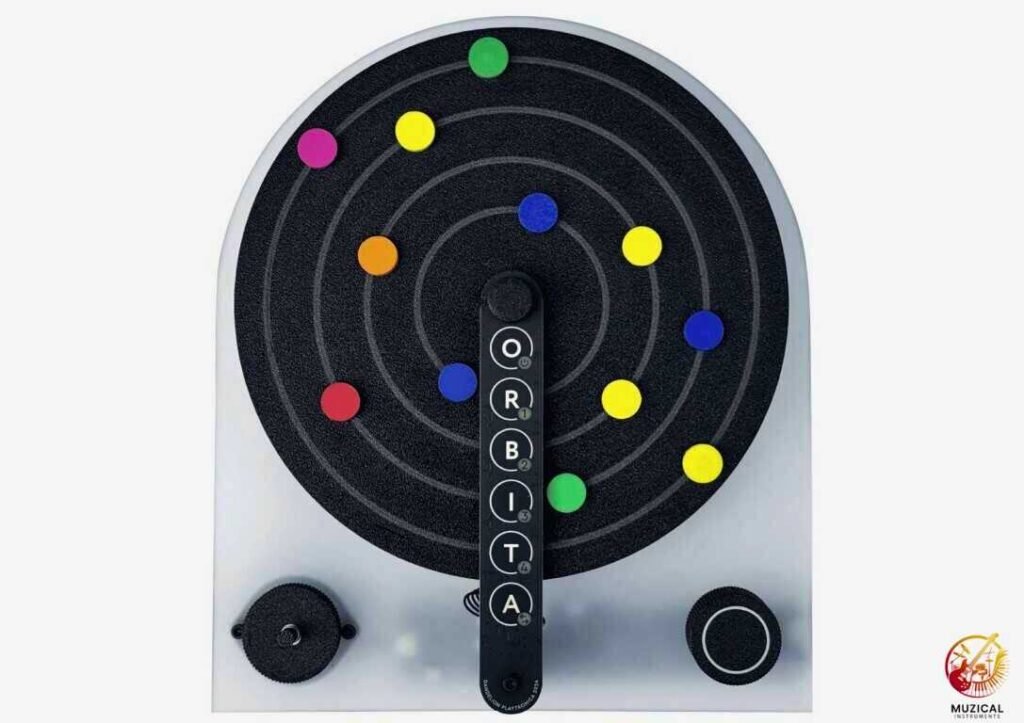
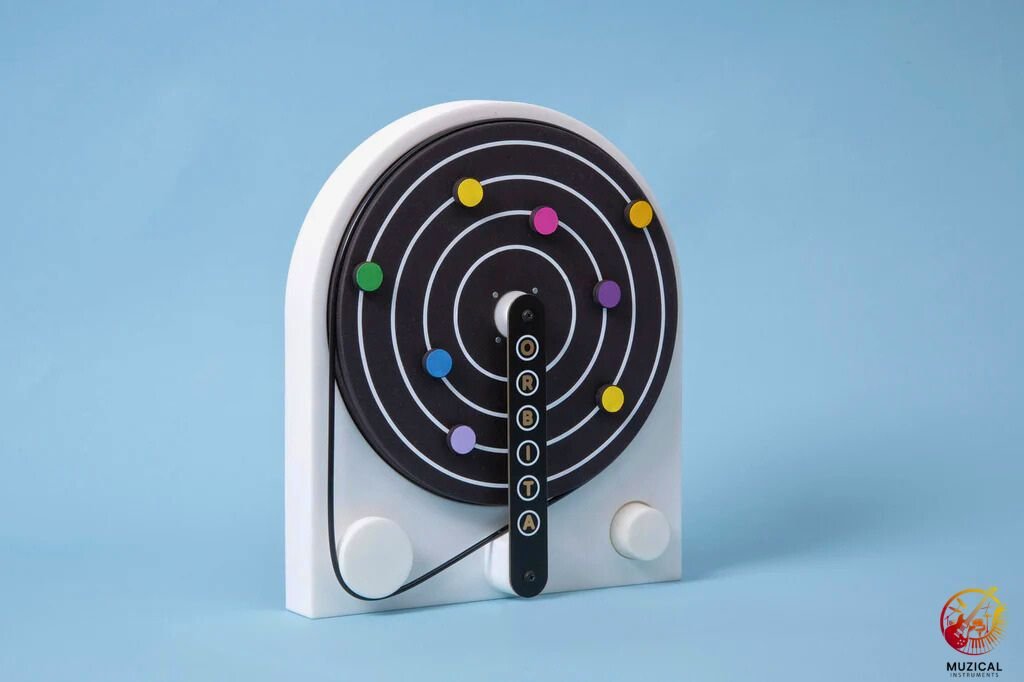
The Orbita’s spinning disc has four separate “tracks.” These are the concentric rings you see on the surface.
Think of these as four different musicians in a band.
- Track 1 (Innermost): You could use this for your kick drum.
- Track 2: You could use this for your snare drum.
- Track 3: You could use this for a hi-hat.
- Track 4 (Outermost): You could use this for a melody or bassline.
When a magnet on any track passes the sensor, it sends a MIDI note.
What Do the Different Colors Mean?
This is where the fun starts. The colors are your musical scale.
By default, the Orbita is set up to play in a simple C Major scale. This is great because it means no matter what color you put down, it will sound good. There are no “wrong” notes.
Each of the four tracks is often set to a different octave. An octave is the same note, just higher or lower.
So, a red magnet on Track 1 (the inner ring) might be a deep, low “C” note.
That same red magnet on Track 4 (the outer ring) will be a high, bright “C” note.
This simple setup lets you create basslines and melodies that work together perfectly, all just by picking colors.
The Physical Controls
Besides the magnets, you have a few simple controls on the base.
| Control | What It Does |
|---|---|
| Speed Knob | This knob controls the motor. You can use it to speed up or slow down your loop (your tempo). |
| Mute Buttons (R, B, I, T) | There is one mute button for each of the four tracks. This is the best part for playing live. You can “unmute” your drums to start the song, then bring in the bass, then the melody. |
| ‘A’ Button (Looper) | This is a more advanced feature. You can press this to record your mutes. For example, you can record a pattern of muting and unmuting the drum track. The Orbita will then repeat that pattern, creating a song that changes over time. |
Your First Playtronica Orbita Setup: A 5-Minute Guide
Let’s get you making sound. This Playtronica Orbita guide will show you the fastest way to start.
What You Will Need
- Your Playtronica Orbita
- The USB-C cable it came with
- A computer, tablet, or smartphone
- A web browser (Google Chrome is recommended) OR a DAW
A DAW stands for Digital Audio Workstation. This is just a fancy name for music making software like Ableton Live, Logic Pro, GarageBand, or FL Studio.
We’ll start with the web browser, because it’s the easiest.
Step-by-Step: Connecting to a Web Synth
You don’t need to download any software to start.
- Plug your Orbita into your computer using the USB-C cable.
- Open the Google Chrome browser.
- Go to Playtronica’s free online synthesizer: synth.playtronica.com
- The website will ask for permission to use your “MIDI devices.” Click “Allow”.
- On the Orbita, place one magnet on one of the outer tracks.
- Press the start button to make the motor spin.
You should hear a note every time the magnet passes the sensor! You are now making music. You can add more magnets, change the colors, and play with the speed knob.
Step-by-Step: Connecting to a DAW (like Ableton Live)
If you want to use professional sounds, you’ll use a DAW. The Playtronica Orbita setup is still very simple.
- Connect the Orbita to your computer with the USB cable before you open your software.
- Open your DAW (for this example, we’ll use Ableton Live).
- Go to your settings or preferences. In Ableton, this is Options > Preferences.
- Go to the Link/Tempo/MIDI tab.
- In the “MIDI Ports” section, you should see “Orbita” as an Input.
- Make sure the “Track” button for the Orbita input is turned ON (it should be yellow).
- Close the preferences.
- Create a new MIDI Track (not an Audio Track).
- On that track, add an instrument. This can be a piano, a synthesizer, or a drum rack.
- Make sure the track is “armed” to record (the small red circle button).
Now, when your Orbita spins, it will play the instrument you loaded on that track in Ableton.
Common Beginner Mistake: “Why Can’t I Hear Anything?”
If your Orbita is spinning but you hear no sound, 99% of the time it’s one of these simple problems.
Here is a quick checklist to fix it.
| Problem | The Simple Fix |
|---|---|
| No synth loaded | The Orbita is just a controller. Make sure you’ve opened synth.playtronica.com or loaded an instrument onto a MIDI track in your DAW. |
| MIDI not connected | Your computer or DAW can’t “hear” the Orbita. In your DAW’s MIDI settings, make sure the “Orbita” input is found and turned on. |
| Wrong track type | In your DAW, you might be on an Audio Track. You must be on a MIDI Track with an instrument loaded onto it. |
| Track not armed | In many DAWs, you have to “arm” the track to receive MIDI. Click the small record-enable button on the track. |
What Can You Actually Do with It? (Creative Ideas)
You’ve made your first loops. Now what? This is where the electronic music innovation of the Orbita shines.
Building Your First Beat
The four tracks are perfect for building a simple drum beat.
- Load a Drum Rack in your DAW onto your MIDI track.
- Put a red magnet on Track 1. Find the sound it triggers. Let’s say it’s a “C” note.
- In your Drum Rack, drag a Kick Drum sound onto the “C” note pad.
- Put a blue magnet on Track 2. Let’s say it triggers a “D” note.
- In your Drum Rack, drag a Snare Drum sound onto the “D” note pad.
- Put a green magnet on Track 3. Let’s say it triggers an “E” note.
- Drag a Hi-Hat sound onto the “E” note pad.
Now, when you press play, you have a full drum loop! You can move the magnets to create new rhythms. This physical, tactile beat-making is way more fun than clicking with a mouse.
What Is MIDI CC Mode?
This is a more advanced trick. The Orbita has two modes.
- Mode 1: MIDI Note (Default): It sends notes (C, D, E, etc.). This is for playing melodies.
- Mode 2: MIDI CC (Advanced): It sends “Control Change” messages.
A CC message doesn’t play a note. It controls a parameter. For example, it can control:
- The filter cutoff (the “wah-wah” sound)
- The amount of echo (delay)
- The volume of a track
In this mode, the Orbita’s sensor reads the HUE (the exact shade) of the color and sends it as a value from 0 to 127. You could draw a colorful line on a piece of paper, tape it to the disc, and the Orbita would “read” your drawing as a changing filter sweep. This is a powerful tool for sound design.
How Much Does the Playtronica Orbita Cost?
This is a common question, as the Orbita is not a simple toy.
The price of the Playtronica Orbita usually is $469 USD.
You might also see it listed for around €399 in Europe or £454 in the UK. The final cost can change a little bit depending on the store, taxes, and shipping.
What’s in the Box for That Price?
When you buy an Orbita, you get everything you need to start (except the computer):
- The Orbita device itself
- A set of colorful magnets
- A USB-C cable to connect to your computer
- A user manual
This price tells you that it’s a “pro-sumer” tool. It’s built to be a high-quality, serious instrument for both beginners and professional musicians.
Playtronica Orbita Review: Is It Right for You?
This is a very special tool. But is it right for you?
Who Will Love the Orbita?
- Beginners and Kids: It’s maybe the best “first sequencer” ever made. It’s impossible to make a “wrong” note. It teaches the basics of loops, tempo, and melody in a visual way.
- Educators: It’s a game-changer for a music classroom. It gets students excited about composition without the barrier of complex software.
- Experimental Producers: Are you stuck in a creative rut? The Orbita is perfect for creating “happy accidents” and getting ideas that you would never find by clicking on a screen. It’s a “screen-free” way to start a new track.
- Live Performers: Using the mute buttons, you can build, break down, and rebuild a song live. It’s very visual and engaging for an audience.
Who Might Not Need It?
- Traditional Pianists: If your goal is to learn complex chords and play piano songs, a traditional MIDI keyboard is a better choice. The Orbita is about loops, not playing chords.
- Producers Needing Total Control: If you need to get a very specific 16-step rhythm, it can be tricky to place the magnets exactly right. The Orbita is more about feeling and less about precision.
Playtronica Orbita vs. A Traditional MIDI Keyboard
Here’s a simple comparison of this motion-controlled music instrument (or rather, magnet-controlled) and a keyboard.
| Feature | Playtronica Orbita | Standard MIDI Keyboard |
|---|---|---|
| Main Use | Creating loops and sequences. | Playing melodies, chords, and basslines. |
| Learning Curve | Extremely easy. You can make a song in 2 minutes. | A bit harder. You need to learn scales and chords. |
| Best For… | Visual learners, beginners, and creative looping. | Learning piano, writing complex songs, precise control. |
| How It Feels | Tactile and playful. Like building with blocks. | Traditional and expressive (with velocity-sensitive keys). |
| Screen-Free? | Yes! You can build a whole idea without a computer screen. | No. You usually need to look at your DAW. |
The Final Takeaway on the Playtronica Orbita
The Playtronica Orbita is one of the most exciting and fun pieces of music gear to come out in years.
It’s a powerful, hands-on sequencer that makes music visual. By using colorful magnets, it turns the complex idea of sequencing and looping into a simple, creative game.
It’s a fantastic Playtronica music device for anyone, from a complete beginner to a pro producer, who wants to get away from the screen and just play.
If you’re ready to start building music with your hands, the Orbita is an amazing place to start.
FAQ: What Is Playtronica Orbita?
1. What is a Playtronica Orbita?
The Playtronica Orbita is a musical instrument called a “sequencer.” It looks like a record player. You use colorful magnets on its spinning disc to build musical loops and beats. You can see the music you are making!
2. Does the Playtronica Orbita make its own sound?
No, it does not. This is a common question! The Orbita is silent on its own. It’s a “MIDI controller,” which is like a keyboard for music. It sends instructions to a computer, tablet, or synth, which then plays the actual sound.
3. What software do I need to use the Orbita?
You can start right away with no software! Just use a web browser (like Chrome) and go to Playtronica’s free online synth. It also works with any music-making software (called a DAW) like Ableton Live, Logic Pro, or GarageBand.
4. How do the colors work on the Orbita?
It’s simple: one color = one note. For example, every red magnet might be a “C” note, and every blue magnet might be a “G” note. The four rings on the disc (the tracks) often play the same note at different pitches (called octaves), from low to high.
5. How much does the Playtronica Orbita cost?
The price for a new Playtronica Orbita is usually around $389 USD or €399 EUR. The price can change a little bit depending on where you buy it and if there is a sale.
Getting started with Orbita Color Sequencer
This video provides a great visual introduction to setting up the Orbita and seeing how it works in real-time.