
Common MIDI Controller Mistakes Beginners Should Avoid

Common MIDI Controller mistakes that beginners make often come from setup issues, wrong settings, and connection problems. These small errors can make your first music session feel hard and confusing.
Almost every problem has a simple fix once you know what to look for.
This guide lists the most common mistakes beginners make and shows you exactly how to avoid them. You will learn how to:
- Set up your controller the right way.
- Fix connection problems fast.
- Get your software ready to play correctly from day one.
What Are The Most Common MIDI Controller Mistakes Beginners Make?
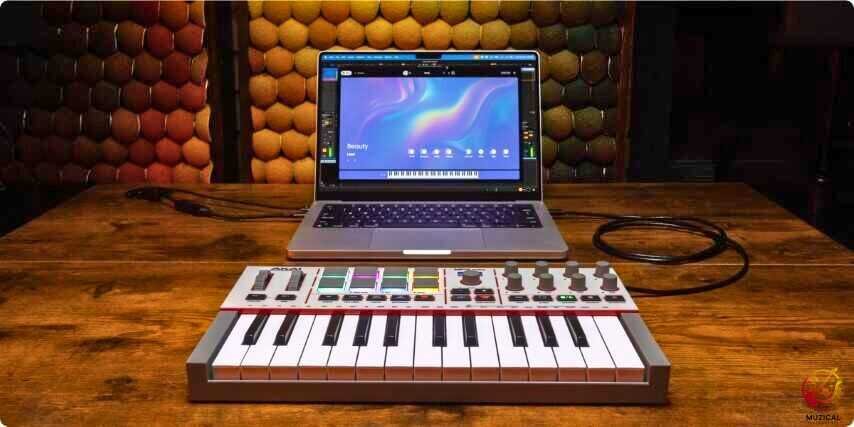
Most early problems come from setup errors, wrong settings, and poor learning habits. These issues make your instrument feel broken, even when it is fine.
These problems show up again and again when people are just starting out:
- Plugging in the controller but skipping software setup
- Using wrong MIDI controller settings
- Choosing the wrong MIDI controller for beginners
- Expecting sound without a virtual instrument
- Ignoring basic MIDI controller learning tips
These simple mistakes waste time and cause frustration. The good news? Every one of them is easy to fix.
Why Does My MIDI Controller Not Make Any Sound?
A MIDI controller makes no sound by itself. This is the #1 first MIDI controller error beginners make.
A MIDI controller sends signals, not audio. Think of it like a remote control. It tells software what to play.
To hear sound, you need:
- A DAW (Digital Audio Workstation) like FL Studio, Ableton Live, or GarageBand
- A virtual instrument (VST) loaded inside the DAW
- Correct setup inside your music software
Quick check:
- Did you load a piano or synth plugin?
- Is the track armed or selected?
- Is the MIDI input set to your controller?
Most “MIDI controller not working” complaints end right here.
How Do Wrong MIDI Controller Settings Cause Problems?
Wrong MIDI controller settings confuse both you and your software. This is one of the most common setup errors new users run into.
Common wrong settings include:
- MIDI channel mismatch
- Pads or keys mapped incorrectly
- Knobs sending no data
- Velocity turned too low
Common Wrong MIDI Controller Settings and Fixes
The table below shows common setting problems and the fastest way to fix each one.
| Problem | What You See | Simple Fix |
|---|---|---|
| Wrong MIDI channel | No sound | Set channel to “All” or Channel 1 |
| Low velocity | Very quiet notes | Increase velocity curve |
| Bad mapping | Knobs do nothing | Re-map in DAW |
| Pads not triggering | Pads feel dead | Load correct pad preset |
Always check your controller’s software editor if it has one. Brands like Akai, Novation, and Arturia all use them.
Why Do Beginners Choose The Wrong MIDI Controller?

Many people choose the wrong controller because they buy based on looks, price, or hype instead of how they actually learn music. This leads to controllers that feel confusing, hard to set up, and not friendly for beginners.
A poor beginner choice usually has:
- Too many controls
- Poor DAW support
- No beginner-friendly presets
What Actually Works For Beginners:
- 25 or 37 keys
- Plug-and-play DAW support
- Clear labels and simple layout
Popular beginner-friendly brands include Akai, Novation, M-Audio, and Arturia. These companies design with beginners in mind.
Buying smaller gear helps you focus on learning music, not fighting hardware.
What MIDI Controller Connection Issues Do Beginners Face?
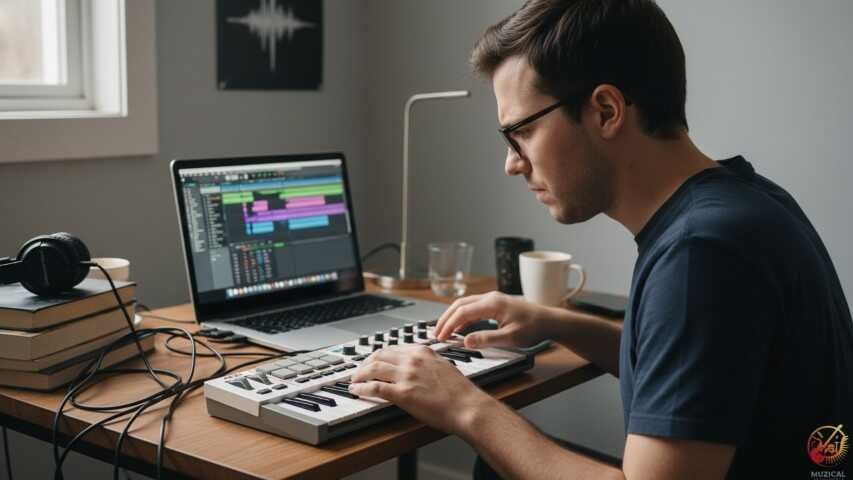
New users often run into connection issues like faulty USB cables, missing drivers, or the controller not being enabled in the DAW.
Typical MIDI controller problems that beginners face:
- USB cable only charges, no data
- USB hub causing power issues
- Missing drivers on Windows
- Controller not enabled in DAW
Common Connection Problems and Simple Fixes
These connection problems are common, and most of them take less than a minute to fix.
| Issue | Cause | Fix |
|---|---|---|
| Controller not detected | Bad USB cable | Use data cable |
| Random disconnects | USB hub | Plug directly |
| DAW can’t see controller | Disabled input | Enable in MIDI settings |
| No response | Driver missing | Install official driver |
Always test with another USB port before panicking.
Why Does My MIDI Controller Work Sometimes But Not Always?
This usually means your software setup is incomplete. Plugging in alone is not enough.
Common causes:
- DAW input not set to controller
- Track not armed
- Wrong control surface selected
Each DAW handles MIDI slightly differently.
Professional tip:
Always set your controller as both Input and Control Surface if your DAW supports it. Ableton Live and Logic Pro rely heavily on this.
This step alone fixes many MIDI controller troubleshooting cases.
Are Beginners Mapping Controls Too Early?
Yes, many beginners map controls too early before learning the basics.
This creates confusion and slows progress instead of helping.
Many beginners rush to assign every knob and pad. They forget to learn basic music flow first.
Better approach:
- Use factory presets first
- Learn one instrument deeply
- Map controls only when you feel limited
Mapping is powerful. But too much too soon creates confusion.
Why Do Beginners Ignore Velocity And Touch Sensitivity?
Many new players ignore velocity and touch sensitivity because they do not know it affects sound and feel. They focus on notes and buttons first, so music ends up flat and robotic.
Velocity controls how hard or soft a note plays.
When velocity is ignored:
- Music sounds flat
- Drums feel robotic
- Piano lacks emotion
Easy fixes:
- Adjust velocity curve in DAW
- Practice playing soft and hard notes
- Test different velocity presets
Velocity is what makes MIDI feel human.
What Mistakes Do Beginners Make When Learning How To Use A MIDI Controller?
Trying to learn everything at once slows progress more than it helps.
This overwhelms your brain.
Better learning method:
- Learn keys OR pads first
- Practice daily for 10–15 minutes
- Focus on one DAW feature at a time
Bad vs Smart Learning Habits
This table compares habits that slow learning with habits that help you improve faster.
| Bad Habit | Better Habit |
|---|---|
| Watching random videos | Follow one course |
| Copying advanced setups | Use beginner templates |
| Changing DAWs often | Stick to one DAW |
| Skipping basics | Master simple beats |
Slow learning wins every time.
Why Do MIDI Controller Problems Frustrate Beginners So Much?
MIDI controller problems frustrate beginners because the issues feel personal, even when they are technical.
When sound does not play, you think you did something wrong.
In reality, most MIDI controller problems are technical, not skill-based.
You are not “bad at music” because:
- A pad does not trigger
- A knob stops working
- A DAW setting resets
These are normal fix MIDI controller issues. Even professionals deal with them.
How Can You Fix MIDI Controller Issues Faster?
You can fix MIDI controller issues faster by checking simple things in the right order.
Use a simple troubleshooting order:
- Check USB cable
- Check DAW MIDI input
- Load a virtual instrument
- Test in another DAW
- Reset controller to default
This order saves hours.
Also, keep your firmware updated. Manufacturers often fix bugs quietly.
Final Thoughts: Avoid These MIDI Controller Mistakes And Learn Faster
Avoiding these early errors will save you hours of frustration. Remember that a MIDI controller is just a remote control for your software; it needs to be told what to do.
Once you fix MIDI controller settings and follow smart learning habits, everything clicks. Use your controller as a bridge to music, not a barrier.
FAQ: Common Problems New MIDI Users Face
1. Why is there no sound coming from my MIDI keyboard?
A MIDI keyboard does not make sound on its own. It does not have speakers or built-in sounds. It is just a controller, like a video game controller. You must plug it into a computer or tablet and open a music program (DAW) to hear anything.
2. Do I need a computer to use a MIDI controller?
Yes, usually. Think of the controller as a steering wheel and your computer as the engine. The controller sends signals, but the computer makes the actual music. However, some advanced controllers can plug directly into hardware synthesizers without a computer.
3. Can I learn to play piano on a MIDI controller?
You can, but it might feel different. Real pianos have heavy, weighted keys. Many cheap MIDI controllers have light, plastic keys (synth action). If you want to learn piano seriously, look for a controller with “weighted” or “semi-weighted” keys and at least 61 keys.
4. What is the difference between a synthesizer and a MIDI controller?
A synthesizer is an instrument that creates and outputs its own sound. You can plug headphones directly into it. A MIDI controller creates no sound; it only sends data to other devices. MIDI controllers are usually much cheaper than synthesizers.
5. Why is there a delay when I press a key?
This delay is called “latency.” It happens because your computer takes a tiny moment to process the note. It is not a broken keyboard! You can fix this by going into your music software settings and lowering the “buffer size” number.


